Saving images to 'Pictures' rather than 'Documents'

John King

Well-Known Member
Registered
When I save images either scanned from Negatives or from a memory card when I go to save them unless I do them singly and they are in a folder they automatically get sent by default to Documents. What is the procedure to get them to be sent to 'Pictures'. I know there is one but I cannot find how to change it on Windows 11 or with photoshop
 
If you’re using a Mac with the Image Capture app the choice of where to save is at the lower left when you open it. Otherwise I don’t know.
 
Macs don't need to be expensive, and they last a long time. I bought my current 2018 Mac Mini when it was 6 years old for about £300, and I expect it to last much longer. I sometimes use my 2010 Mac Mini for Photoshop CS6 and other old software. And I kept the same 16-years old monitor screen and keyboard, so that saves a lot as well.
 
No I don't thinks so, it diverts the images to the cloud system and non of my images are ever going there. Basically I don't trust Microsoft when they say they cannot access them or even just shut it down without warning. No-way Hosea
 
When I save images either scanned from Negatives or from a memory card when I go to save them unless I do them singly and they are in a folder they automatically get sent by default to Documents. What is the procedure to get them to be sent to 'Pictures'. I know there is one but I cannot find how to change it on Windows 11 or with photoshop

When I save images either scanned from Negatives or from a memory card when I go to save them
Which program are you in when you go to save them?
 
I will be using PS. My usual way is to insert the SD card and open it up in PS and work from there. I believe there may be a way by changing 'preferences' Do you know anything about that? I have looked and cannot find 'preferences' in Windows 11
 
I will be using PS. My usual way is to insert the SD card and open it up in PS and work from there

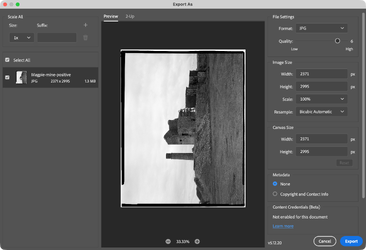
In Photoshop when you choose to export them using the Export dialog, when you press the Export button, you choose a location. The location you choose is persitant until you choose a different one

Screenshot 2026-09-17 at 19.18.20.png
 
I have never seen a page like that one. It is completely new to me. Is it part of the Lightroom section, then if so that is the reason I don't use Lightroom
 
John, I've been away and just read this post. In my experience, your target folder for a scanned image is set up within the scanner software and where that is depends on the scanner. Your scanner may not have that option but have a search around. For an upload from a memory card, it's easy if you use Adobe Bridge (File/Get photos from Camera/Device). Adobe Bridge automatically finds your memory card reader. If you don't use Bridge, try the following:

Insert your card into the card reader.
Right click on the W11 Start button (Four squares symbol in the bottom task Bar.).
Select (left click) "File Explorer".
Find and select "This PC" in the left hand column listing.
Your Card reader should show as a disk, probably marked as a "Removeable Disk".
Double Left click on that and it will list the contents of the memory card.
Open the image file.
Left click on the first image then hold down "Shift" and left click on the last image. This selects all of the listed images.
Once all of the images are highlighted, you can copy them (right click/Copy on any one of them) and then locate your preferred location, open it and paste the copied content into it. Alternatively, if you can see your preferred location in the File explorer listing, you can also just drag the highlighted items across to the location heading (title) and that will copy them to that location in the same way.

Hope this helps.
 
Last edited:
It has nothing to do with scanning. These were all digital images taken when I was on a 4 day break in Shetland. There may be an option of using Bridge with PS but I just cannot get on with it at all
Why in the PS programme can there not be an option where I can put all my images from any source into a folder and simply click from a list where I save them to. I can do it with each individual frame so why not with a folder.
I have been told that there is an option in 'preferences' but I cannot find it.
 
It has nothing to do with scanning. These were all digital images taken when I was on a 4 day break in Shetland. There may be an option of using Bridge with PS but I just cannot get on with it at all
Why in the PS programme can there not be an option where I can put all my images from any source into a folder and simply click from a list where I save them to. I can do it with each individual frame so why not with a folder.
I have been told that there is an option in 'preferences' but I cannot find it.
If you are getting nowhere, we can arrange a Teams Metting and I will help you configure your workflow to how you want it to work for you

Ian
 
When I save images either scanned from Negatives or from a memory card when I go to save them unless I do them singly and they are in a folder they automatically get sent by default to Documents. .....................
Apologies. I was going by your original post. Given your problems, I was just trying to provide a workaround.
 
........................... Why in the PS programme can there not be an option where I can put all my images from any source into a folder and simply click from a list where I save them to. I can do it with each individual frame so why not with a folder. ............................
Probably because they provide just that function in Bridge. Bridge is a very powerful viewing and cataloguing App but there is no reason why you can't ignore that aspect and just use it to upload your images to where you want them, then close it down and carry on as you normally would.
 
Back
Top