Monitor calibrators - recommendations, hints and tips please

Glenn

Well-Known Member
Registered
I am starting to enter prints for camera club competitions and am thinking to purchase a monitor calibrator. The Spyder X2 looks popular and reasonably priced. Has anybody used one or know of something better?

I would also like to understand something of their operation in terms of

- ease of restoring the monitor's own factory pre-sets after calibration
- adjustment of screen brightness to its full level after calibration (for general computer use: the old peepers aren't what they were!) and then the restoration of a calibrated brightness level for picture editing.

I am currently using an iMAC if that helps.
 
Last edited:
DataColor often sends me products to test for them and the SpyderX range is very good, I currently use the SpyderX, and its very quick compared to other products.

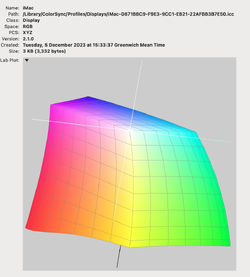
The created profiles are very clean.

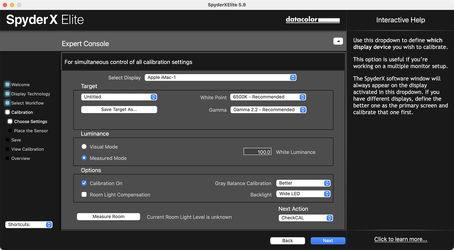
One thing I will say is that setting the Brightness to 100 CDL on an iMac is very satisfying especially when working the monochrome colour space
 
OK so. How to use a calibrated monitor?

This seems helpful:

 
Last edited:
Set the target brightness between 100-120
If I may offer the alternative of 80 cd/m2. Because it gives a darker on-screen appearance, prints turn out brighter and clearer, with more shadow detail, and especially for B&W

i have been doing this for many years and have very satisfied commercial clients.
 
If I may offer the alternative of 80 cd/m2. Because it gives a darker on-screen appearance, prints turn out brighter and clearer, with more shadow detail, and especially for B&W
I've just conducted some tests for curiosity and here are my findings

5% Step- Tablet

DataColor SprderX

Screen brightness 60 to 100 I see no difference in detecting Shadows Value separation in print

X-Rite ColorMunki Photo (Original)
Screen brightness 60 to 100 I see no difference in detecting Shadows Value separation in print

Practicality
Unless you have a monitor that is used solely for editing, setting the screen brightness to 100 is as low as I feel comfortable which is adequate for other tasks.

Quality of Profile
It's very close but the profile created from SpyderX does produce a wider gamut
 
Practicality
Unless you have a monitor that is used solely for editing, setting the screen brightness to 100 is as low as I feel comfortable which is adequate for other tasks.

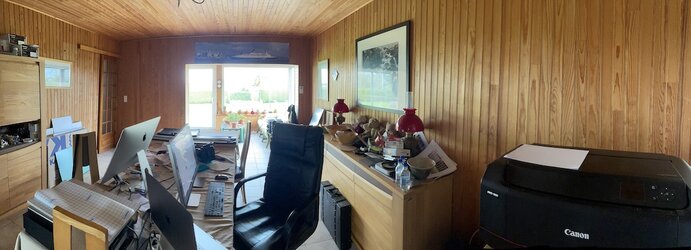
I suppose my findings are influenced by my working room, which used to be a garage but is now converted into a dining room, with a 2m deep verandah (conservatory) on the south end. The dining room is wood clad and quite dull - so cozy feeling but makes working on any app quite comfortable at 80 cd/m² with the advantage of the almost fully glazed verandah giving a natural daylight viewing room

IMG_1345.JPG

Quality of Profile
It's very close but the profile created from SpyderX does produce a wider gamut

I use the Calibrate Display Plus but, since I use Apple Displays, that means they both work in the P3 gamut, which might explain why we find my settings work better.

Oh, and one last thing - I recently upgraded to the latest 27" Apple Studio Display with the luxury of the nano-texture glass. Now, that does make a difference, reducing alll the reflections we get, especially in the early mornings and late afternoons, when the sun is at its lowest.
 
What % coverage are you getting to sRGB and Adobe RGB 1998 with the Apple Studio Display

Well, with the Calibrate profile applied to the monitor, I can't get PhotoLab's soft proofing to show any problems when outputting to sRGB for exporting of Bruce Lindbloom's 16million colour test file.
 
@Joanna Carter @ian barber

Thanks both for your input.

Excuse a basic question.

I am wondering how you are being so precise about brightness levels. I took the time to write down the screen brightness levels versus the brightness setting during calibration:

Position of brightness control (steps 0 thru 16)Screen brightness (iMAC integrated screen in cd per sq. m)
651
780
8126
9149

I assume that you are both adjusting post-alignment screen brightness with the brightness control on the keypad, that Joanna is suggesting to use step 7 and Ian step 8. Is that right please or am I missing something?

Additionally, are you editing in ambient light, with a monitor hood or in a darkened room?
 
Last edited:
I never measure the ambient light because the light levels in this room never change when I am editing also the Spyder creates multiple profiles when measuring ambient light and then uses LUT's which is something I am not keen on.

During the calibration, the software asks you to turn up the screen brightness to MAX which I do in system preferences and displays.

Then, it measures the brightness, my Imac usually comes in at 503.
Because I have told the software that my target value is 100, I then keep reducing the brightness until I get to 100
 
I assume that you are both adjusting post-alignment screen brightness with the brightness control on the keypad, that Joanna is suggesting to use step 7 and Ian step 8. Is that right please or am I missing something?

Nope. Slightly wrong.

First you need to turn off the automatic screen brightness in the System Preferences.

Then using the calibrator software, adjust the brightness, using the monitor preferences, to 80 cd/m2 whichever value you feel is suited to your environment

Then whatever else you do, do not ever alter the brightness using the function keys.

Once the brightness is correct, then the software will take you on to the calibration and creation of the profile.
 
Last edited by a moderator:
Thanks both. I need to go away and check these things. Will do so and revert.

I turned off auto-brightness before the calibration cycle started. I calibrated in a darkened room as I generally edit in a darkened room.

The Spyder X software workflow had me adjust the brightness of a white screen it generated to 120 cd per sq. m which I did. I simply noted down the brightness-control-position versus screen-brightness while I was at it and before committing to the closest brightness control setting which was step-8. That way I was able to determine how big the brightness control adjustment steps were. I would think these would be the same post-calibration. Hence my comment.

I wasn't aware of the expert console as it wasn't part of the workflow the Spyder software led me through. I'll go look.
 
I turned off auto-brightness before the calibration cycle started.

This is good. Never switch it back on ever.

I calibrated in a darkened room as I generally edit in a darkened room

This is not strictly necessary as the sensor is shielded.

The Spyder X software workflow had me adjust the brightness of a white screen it generated to 120 cd per sq. m which I did

I think you'll find that is a suggestion and you should change this to 80 or, at most, 100.

I simply noted down the brightness-control-position versus screen-brightness while I was at it and before committing to the closest brightness control setting which was step-8. That way I was able to determine how big the brightness control adjustment steps were. I would think these would be the same post-calibration

This sounds squiffy.

@ian barber could you show a screenshot of the brightness calibration screen from Spyder X? Here's the one from Calibrite…

Capture d’écran 2023-12-12 à 16.53.54.png
 
I simply noted down the brightness-control-position versus screen-brightness while I was at it and before committing to the closest brightness control setting which was step-8. That way I was able to determine how big the brightness control adjustment steps were. I would think these would be the same post-calibration.

This sounds squiffy.

It's a Glenn thing. :)

I think you'll find that is a suggestion and you should change this to 80 or, at most, 100.

Ah, OK. Got it.

I used the 'step by step assistant' rather than the 'expert console'. Re-running it just now I find that one of the steps before the calibration cycle is to set the target brightness and the default is 120. Eighty, ninety and one hundred are available among others. There is also a field for the white point with a default of 5600. The monitor is just warming up now and I will redo the calibration in a bit. Will change to 80 cd/m2 and 6800 degrees to see how I get on.
 
Last edited:
Back
Top