

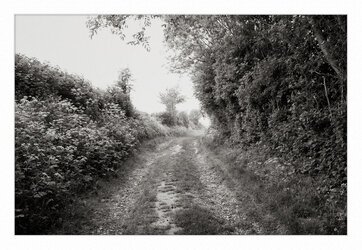
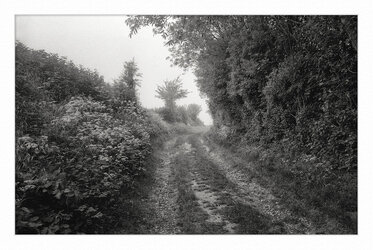
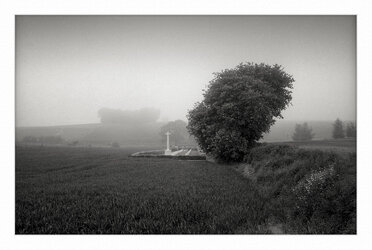
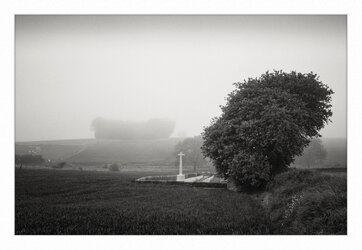
Views of the sunken lane and the 'linchet' and Hawthorn Ridge , Beaumont-Hamel, Somme, taken with Nikon D7200 and Nikon 17-55/2.8 and Nikon F3 28/2.8 FP4/DD-X.


If you are using Lightroom Toby the white balance can be changed in any area 'painted' by the selection brush.Perhaps I need to find a way of selectively changing the white balance, if anyone has any suggestions?
Would camera raw in PS do the same thing?Interesting thoughts, thank you.
Mike, I don't really use LR except for cataloguing. Would you be able to take me through the process?
Gladly .... watch this space shortly.Interesting thoughts, thank you.
Mike, I don't really use LR except for cataloguing. Would you be able to take me through the process?
Toby,Mike, I don't really use LR except for cataloguing. Would you be able to take me through the process?
Toby,
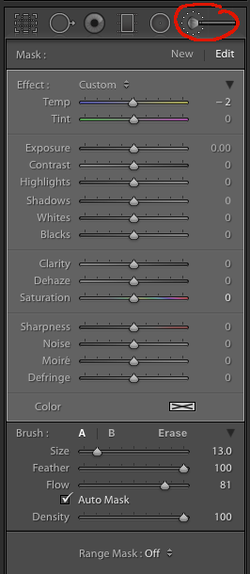
Open up an image in LR from your 'Library', then move to the 'Develop' module. In the 'Basic' panel select 'Black & White' in the 'Treatment' section even if it is a black & white image. Then open the selection brush panel from the tools bar ...
View attachment 6213
Move the sliders to adjust the size, feather and flow of the brush (the latter will need to be high in order to see any difference), then hit the letter 'O' on the keyboard which will give you an overlay showing you where you have brushed. Brush over the area you wish to adjust. Hit the 'O' key again to get rid of the overlay and then adjust the 'Temp' and 'Tint' sliders to choice. All of the other sliders in the panel will also work within the selected area, feathering out to the edges of your selection. I always use a very large feather.
You can use the erase feature if you over-brush, or hit 'Reset' (bottom right of the main adjustments panel) to go back to where you started.
It is an amazing simple and effective tool, which I use extensively on an image rather than bother with PS.
Hope this helps.
Mike

Perhaps I should add that a similar adjustment is possible using any of the selection tools. e.g. graduated filter.
All very quick and powerful.
Alan, what Mike describes and shows how to do can be done with Adobe Camera Raw. Though, LR has other features that don't exist in Adobe Camera Raw.Would camera raw in PS do the same thing?