
I'm still not convinced 80 is a good setting to use. If you have to go this low just to satisfy the print then personally I think there is an issue elsewhere in the editing workflow

-
Thank You For Visiting... Please Click Here and sign up to contribute
You are using an out of date browser. It may not display this or other websites correctly.
You should upgrade or use an alternative browser.
You should upgrade or use an alternative browser.
Monitor calibrators - recommendations, hints and tips please
- Thread starter Glenn
- Start date

Will change to 80 cd/m2 and 6800 degrees
If you are printing B&W, colour temperature is less relevant but, from years of working with film as well as digital, i tend to prefer 5600ºK as it tends to being slightly warmer and more "comfortable" to look at.
I'm still not convinced 80 is a good setting to use. If you have to go this low just to satisfy the print then personally I think there is an issue elsewhere in the editing workflow
Maybe it's my workspace, which is relatively dull but, for me, I find it more reliable. Possibly an idea to see which suits a particular workspace lighting.
It's also going to depend where prints are going to be hung, the wall colour, lighting, etc.
Can you physically see a difference between 80 / 100 or 80 /120Maybe it's my workspace, which is relatively dull but, for me, I find it more reliable. Possibly an idea to see which suits a particular workspace lighting.
This is an even bigger rabbit hole. I calibrate to 6500K but I know for a fact the lights in the room or even above the prints are not that temperature so I guess one could say "all bets are off for the one"It's also going to depend where prints are going to be hung, the wall colour, lighting, etc.

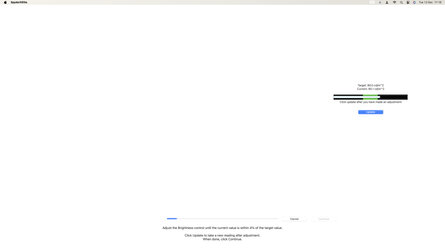
I also wonder if the 2 brands of measuring devices are quite wide apart, each one will probably measuring different number of patches

... I also wonder if the 2 brands of measuring devices are quite wide apart, each one will probably measuring different number of patches
When we used to calibrate TV screens in the factory we used colourimeters that were considerably more expensive than those on the domestic market to ensure consistency, accuracy and reliability. Their own calibration was verified annually.
As such I wonder how closely two or more devices of the same make and model (such as the Spyder X) will match in their measurements.
Incidentally, this was something done even in the early days of colour TV. Philips (whom I worked for at one point) did some psychometric tests on people's preference and as a result adjusted their products to be slightly bluer than the competition. It gave them a commercial advantage when TVs were displayed side-by-side in a showroom. Odd then that we now appear to prefer something warmer with a lower colour temperature.
I made a script for Photoshop which creates different step tablets that I use for black-and-white test printing.
They can also be used to see just how well the monitor responds to tonal separation.

They can also be used to see just how well the monitor responds to tonal separation.

All the wood in the room looks like it will result in quite warm cast if you ever compare prints to the monitor images. I have heard of some people ensuring walls are of a neutral colour to avoid this influence.I suppose my findings are influenced by my working room, which used to be a garage but is now converted into a dining room, with a 2m deep verandah (conservatory) on the south end. The dining room is wood clad and quite dull - so cozy feeling but makes working on any app quite comfortable at 80 cd/m² with the advantage of the almost fully glazed verandah giving a natural daylight viewing room
View attachment 18318
I use the Calibrate Display Plus but, since I use Apple Displays, that means they both work in the P3 gamut, which might explain why we find my settings work better.
Oh, and one last thing - I recently upgraded to the latest 27" Apple Studio Display with the luxury of the nano-texture glass. Now, that does make a difference, reducing alll the reflections we get, especially in the early mornings and late afternoons, when the sun is at its lowest.
Can you physically see a difference between 80 / 100 or 80 /120
Yes, slight for 100 and definite for 120
This is an even bigger rabbit hole. I calibrate to 6500K but I know for a fact the lights in the room or even above the prints are not that temperature so I guess one could say "all bets are off for the one"
Well, I just checked with my Minolta ColorMeter IIIF, pointing at the mixed cloud and blue sky above my verandah and got a reading of 5500°K which lines up with the norm for daylight film. I use that same lighting ± a few degrees for the window glass, so I get the same balance on screen as under natural daylight.
Bearing in mind that I am presently getting 7480°K through the East-facing window and 4850°K through the West-facing window, It's never going to be perfect, especially since gallery lighting isn't guaranteed to be 5600°K either, depending if there are windows in the room and the time of day.
Using 6500°K only seems to have become accepted as "normal" since digital came along. Personally, I find it too blue when compared with average room lighting and can fool the eye into over-warming colours on screen, which can affect the feel of a print.
Of course, for B&W work, the difference is not so important.
They can also be used to see just how well the monitor responds to tonal separation.
Using the macOS digital colormeter, I can get differences between all those patches, even though they are far from linear. Here's my results for the 21 step wedge…
0, 6, 26, 38, 51, 64, 76, 89, 102, 114, 128, 140, 152, 165, 178, 191, 204, 217, 229, 243, 255
All the wood in the room looks like it will result in quite warm cast if you ever compare prints to the monitor images
Which is why I always view prints in the daylight verandah end of the room.
Those numbers look more like RGB numbers to me and not L* values plus you are measuring a file that probably has sRGB attached instead of the un-managed originalsUsing the macOS digital colormeter, I can get differences between all those patches, even though they are far from linear. Here's my results for the 21 step wedge…
0, 6, 26, 38, 51, 64, 76, 89, 102, 114, 128, 140, 152, 165, 178, 191, 204, 217, 229, 243, 255
Those numbers look more like RGB numbers to me and not L* values plus you are measuring a file that probably has sRGB attached instead of the un-managed originals
I'm sorry Ian, not being dismissive, but all that kind of complicated stuff goes beyond even me.
I have been creating & printing B&W images for years, now with my Canon 1000-Pro printer, which I don't even need to profile for B&W, because the in-built settings work wonderfully. What I see on the screen is what I get on the paper.
The one thing that made the biggest difference to my work was discovering the shadow, mid-tone and highlight fine contrast controls in PhotoLab. They just make it so much easier than all those fancy layers and masks in Photoshop at getting contrast at a detail level.
DXO and Affinity for sure have come a long way over the years, narrowing the gap with Adobe but Adobe is still ahead of the game, not surprising really since their products have become the industry standard.The one thing that made the biggest difference to my work was discovering the shadow, mid-tone and highlight fine contrast controls in PhotoLab.
Layers and Masking are extremely powerful once you have been taught them. The problem with people I find today is that they don't want to spend money on training yet they will spend a ton of money on the latest gear thinking it's going to make them a better artist.They just make it so much easier than all those fancy layers and masks in Photoshop at getting contrast at a detail level.
I agree but I think the issue is spending time and effort as much as money. There are plenty of great YouTube tutorials and other resources out there. I am quite happy with Layers and Masking (and quite a lot else besides) after a rinse-and-repeat cycle of watch tutorial - try out new technique - re-watch tutorial. I speak as someone who enrols in courses (RPS/OU "Creating a professional portfolio", Alec Soth's "Photographic Storytelling" and Nick Carver's "Composition for Dramatic Landscapes" to name a few).Layers and Masking are extremely powerful once you have been taught them. The problem with people I find today is that they don't want to spend money on training yet they will spend a ton of money on the latest gear thinking it's going to make them a better artist.
That said, I am sympathetic to Joanna's "not broken, don't fix it" viewpoint and can well see that a well thought out back-end process you are familiar with frees up time to spend on picture taking.
Last edited:
[edited from the original and included here for the sake of academic interest]
The engineer in me was curious to understand the effect of the luminance calibration routine itself so I found a way to measure the iMAC screen brightness using a laptop/spyder combination as a luminosity meter.
In summary:

The engineer in me was curious to understand the effect of the luminance calibration routine itself so I found a way to measure the iMAC screen brightness using a laptop/spyder combination as a luminosity meter.
In summary:
- Firstly, the iMAC is calibrated in the usual way with the spyder connected to the MAC. The target brightness was 100 cd per sq. m for the sake of easy maths.
- During the calibration application's screen brightness adjustment step, I took the opportunity to note down luminosity against the position of the brightness control as adjusted by the brightness keys on the keypad. There are 17 adjustment steps which I have labelled 0 (darkest) to 16 (brightest).
- The nearest luminance match to the target 100 cd per sq. m occurred in the middle of the brightness control range at adjustment step 8. It measured 116 cd per sq. m.
- The calibration routine was allowed to continue and complete.
- A 100% white test patch was displayed on the iMAC screen and the spyder plugged into the laptop to capture the post calibration data shown in the orange curve. The spyder sensor remained in position on the iMAC.
- After calibration, the luminance at step 8 measured 102 cd per sq. m, so within 2% of the target. Luminance measurements at other brightness settings were reduced by the calibration application pro rata.
- I note that if I turn down the brightness control from step 8 to step 7 after calibration, luminance drops from 102 to 64 cd per sq. m. In other words, the difference between 100 and 80 cd per sq. m (see earlier posts in this thread) is about one half of a brightness adjustment step. Visually, there is a discernible difference between the two settings but it is quite small.
- I find myself surprised how large the brightness adjustment steps are in terms of change in luminosity each one produces.
Last edited:
Where are you getting the 16 brightness steps from
@ian barber
During the calibration application's screen brightness adjustment step, I took the opportunity to note down luminosity against the position of the brightness control as adjusted by the brightness keys on the keypad. There are 17 adjustment steps which I have labelled 0 (darkest) to 16 (brightest).
I have edited my earlier post so it is hopefully clearer now.
During the calibration application's screen brightness adjustment step, I took the opportunity to note down luminosity against the position of the brightness control as adjusted by the brightness keys on the keypad. There are 17 adjustment steps which I have labelled 0 (darkest) to 16 (brightest).
I have edited my earlier post so it is hopefully clearer now.
Last edited:
but Adobe is still ahead of the game
Not if you read the un-biased reviews.
Layers and Masking are extremely powerful once you have been taught them
Indeed but PhotoLab uses a slightly different way of working, which are just as, if not more, powerful. The problem with long time Photoshop users is that they don't believe that anything can be better and spend inordinate amounts of time and effort doing stuff that PhotoLab can do in seconds (once you get to know it)
The problem with people I find today is that they don't want to spend money on training
I offer free tutorials on PhotoLab at our photo club and there are plenty more on YouTube and DxO's own site. I'd rather spend my money on quality gear.
Executive summary:
- Target brightness is 100 cd per sq. m for easy maths
- During the calibration's brightness adjustment step, the nearest luminance match to 100 cd per sq. m occurred in the middle of the brightness control range at step 8. Before calibration the native screen brightness at step 8 was 116 cd per sq. m and afterwards was 102 cd per sq. m, so within 2% of the target. Screen brightnesses at other brightness settings were reduced pro rata.
- If I turn down the brightness control to step 7 after calibration, screen brightness drops to 64 cd per sq. m. In other words, the difference between 80 and 100 cd per sq. m is about one half of a brightness adjustment step. Visually, there is a discernible difference between the two settings but it is quite small.
I'm sorry but I don't get why you are measuring luminosity before and after. Once it is set during the calibration, it should never change.
I'm sorry but I don't get why you are measuring luminosity before and after. Once it is set during the calibration, it should never change.
Yes, you are correct. Academic interest only. I was simply curious how the calibration program itself changes the computer display's behaviour, a before and after calibration snapshot if you will. I am not advocating changing anything once the machine has been calibrated.
Last edited:
I am not a PhotoLab user but have been using Photoshop for over 23 years now at least once a day.Indeed but PhotoLab uses a slightly different way of working, which are just as, if not more, powerful.
Now don't get me wrong, Adobe is not squeaky clean and PS does have issues, I know because I am part of their Developer Pre-Release team as I code up JSX and UXP plugins.
I have a Question:
In what way are the Layers and Masking features considered to be "More Powerful" as you put it?
I ask because a fair few of my students ask me on many occasions if there is an alternative way to do what I teach them in Photoshop which is usually, advanced masking including double masking.
In what way are the Layers and Masking features considered to be "More Powerful" as you put it?
Of course, it's a matter of how used you are to each tool but when it comes to "magic" selections, PhotoLab now has an evolution of the "U-Point" technology with Control Points and Control Lines.
Take this image…

I want to enhance the sky detail.
 So I first create a Control Line mask…
This consists of a gradient portion, a "full strength" portion and a pipette to select the affected Luma/Chroma range. The trick is to create an area that is as near to white as possible, using the Luma and Chroma selectivity sliders. in this case, only one Control Line was necessary but multiple lines and points, both positive and negative can be added to the one mask to refine it.
As you can see, the mask is just B&W and should be constructed before attempting to make any local adjustments.
Once satisfied that everything I want is selected or not, I hide the mask and use the "equaliser" sliders to apply the necessary edits…

I suppose Adobe uses AI selections now, but DxO has used this technology for years and it isn't as prone to false selections as AI can be.